
Guide / P002
lily's world XD Demo Walkthrough
The demo is a smaller game than the full release, with its own five inputs and its own ending point. This route covers the demo build only, and marks where the full-release answers differ.
Quick answer
The demo is the separate Steam application released on 4 June 2026, before the full game. You pass the opening blocker by typing cat into the laptop login, then work through four more inputs, and the route ends when Iris asks you to reply and you answer Radiant Path.
- Scope is the standalone demo application, not the 17 September 2026 full release. Answers that differ between the two builds are flagged in place.
- Demo input strings come from community transcriptions rather than an official list, so each one is written with its known variant.
- This page describes the route only. It makes no claim about whether the demo is currently downloadable.
Which build this route covers
The demo is not a cut-down menu inside the full game. It is a second Steam application with its own app ID, its own input list and its own final scene.
The demo arrived on 4 June 2026, ahead of the full release on 17 September 2026, and it kept the separate application ID it shipped with. Because the two builds were updated on different schedules, a route written for one can contradict the other at the level of a single character.
| Demo | Full release | |
|---|---|---|
| Steam application | Its own demo app ID | Main game application |
| Released | 4 June 2026 | 17 September 2026 |
| Inputs needed to finish | Five documented strings | Longer chain across the desktop and web |
| Ends at | Your reply to Iris | The Incident Report and the ending fork |
| Study Guide input | kite runner with a space in demo transcriptions | kiterunner as one word in most full-release guides |
| Seclink code | 2003 03 25, date-first | 03252003, month-first |
How the demo opens
The opening is the same premise as the full game: you find a laptop, and the first thing standing between you and the story is a login field.
You start on the lock screen rather than on the desktop, and the game gives you a hint button rather than a tutorial. Pressing it asks which animal is Lily's favourite, and the desktop art behind the login window shows the same answer.
- Open the hint before typingThe question-mark bubble beside the password field is the whole puzzle. Without it,
catis a guess rather than a deduction. - Enter the boot passwordType
catand the desktop loads. This input is identical in the demo and the full release, and it is the one string in the game that never appears with a variant. - Look at what the demo does not haveEvery input in the demo is typed either on the desktop or on a site you reach from it, so the route never sends you to the later web chain. If a folder refuses to open and you have already used its documented demo input, that stage is beyond the demo's end.
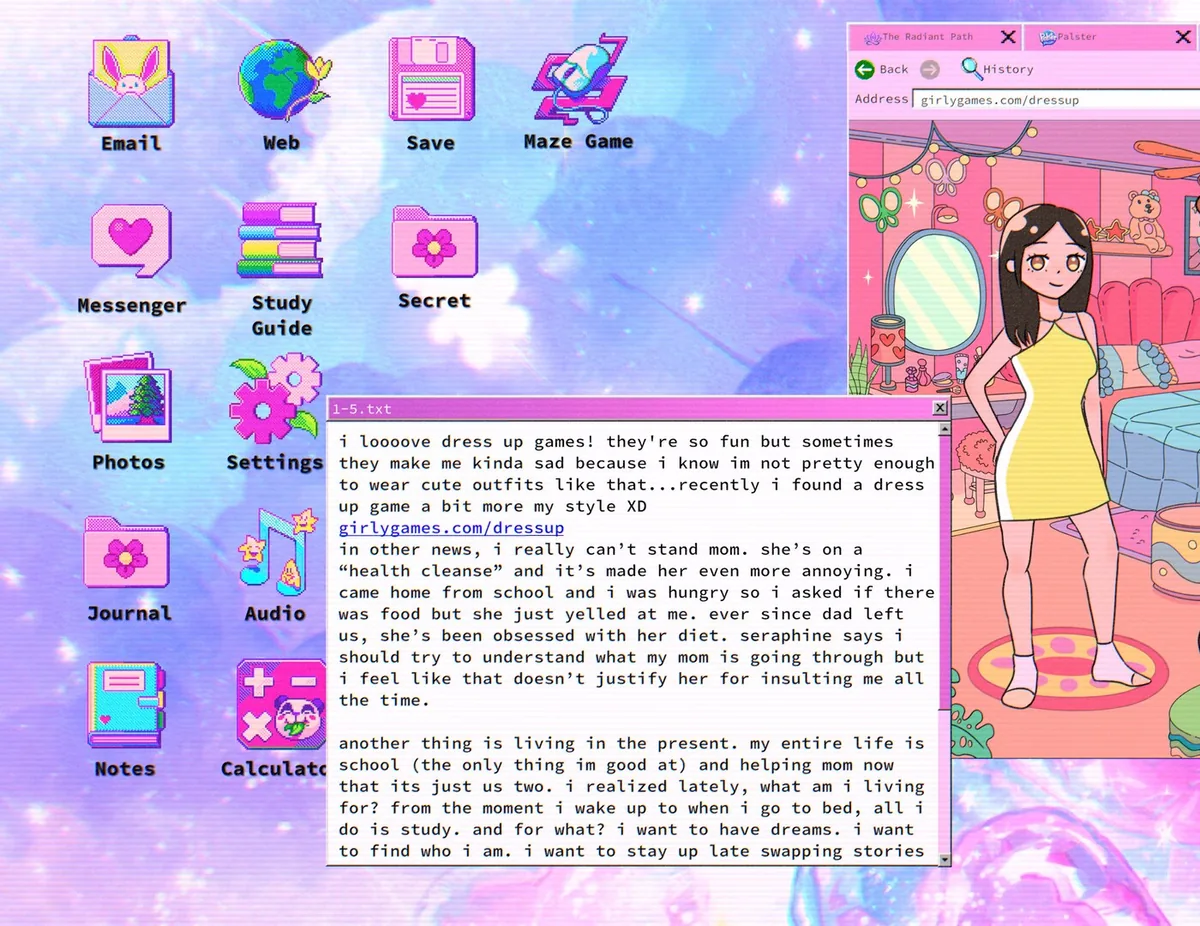
The five inputs that carry the demo
Every blocker in the demo belongs to one of five inputs. Three of them are typed into a field on the desktop, and two are typed into a website.
| Where | Input | Variant seen in the demo |
|---|---|---|
| Laptop login | cat | None |
| Study Guide folder | kite runner | Recorded with a space in demo transcriptions |
| Palster login | [email protected] | One guide writes 008; the majority write two eights |
| Palster password | alex 11 | Written as alex11 in full-release guides |
| Seclink chat code | 2003 03 25 | Written as 03252003 in full-release guides |
Only the first input is confirmed at the same strength for both builds. The other four are transcribed from community records of the demo, and the demo notes are explicit that the exact spacing was not independently verified, which is why the variant column exists instead of a single canonical string.
Walking the demo route in order
The demo keeps the full game's habit of hiding the clue in one window and expecting the answer in another.
- Boot the laptop with the favourite-animal answer you got from the hint bubble.
- Open the blog, change its background colour, and follow the address that appears. This step is the same chain the full release uses, and the Study Guide page documents it end to end.
- Read the emoji page and answer its book question to unlock the Study Guide folder. The demo version of that answer is the spaced spelling.
- Sign in to Palster with Lily's email address and the two-ingredient password. The Palster page explains where both ingredients come from.
- Open the Seclink conversation using the date printed on Lily's photo, in the demo's date-first order.
- Follow the conversation to the end of the demo's content, where Iris asks you to answer her.
Nothing in the demo requires the later sites. If you have used all five inputs and the game has not moved on, you are most likely at the final scene rather than stuck on a puzzle.
Where the demo route ends
The demo ends on a reply field, not on a cutscene. You have to type the answer yourself for the demo to close.
Iris asks you to respond, and the accepted answer is Radiant Path. Several written sources agree on that reply, though none of them is an official statement, so treat it as the community-verified string rather than a documented one.
After the reply the demo stops. The full release continues from the same point into the maze and the late-game report, which is why an ending written for the demo will not match what you see if you continue in the full game.
The demo's personalisation settings
The demo can read your Steam profile and use a webcam photo of you. Both are part of the effect, and both can be switched off before you start.
Review coverage, a walkthrough and player reports agree that the demo pulls your Steam profile details into the game and takes a webcam photo unless you disable it. With the webcam option off, the game substitutes a generic image and the scene still works.
If you would rather not have either behaviour, change it in the settings before you leave the login screen. Turning it off does not block any puzzle or achievement.
Known demo problems
Two issues come up repeatedly in demo reports. One was addressed by an update; the other has no documented fix.
- The 17 June 2026 update added ultrawide support, resolution options and settings access from the Esc key, and it fixed one save-specific case where the ending failed to trigger. If your demo copy predates that update, reinstall before you troubleshoot a missing ending.
- Players have reported the in-game browser window staying pinned to the top of the screen and covering the desktop icons, including the Study Guide. No official fix is recorded for it; a save and reload is the practical workaround.